ascii-magic
Converts pictures into ASCII art
Description
ASCII Magic
Python package that converts images into ASCII art for terminals and HTML.
Code based on ProfOak's Ascii Py.
Changelog
v2.7.3 - Jan 2026
- Fixed Python 3.9 compatibility issue
v2.7 - Oct 2025
- SwarmUI support: from_swarmui()
v2.6 - Oct 2025
- Gemini support: from_gemini()
- to_image_file() stroke_width parameter
- Removed Stable Diffusion and DALL-E support (API no longer available)
v2.5 - Oct 2025
- Optional image enhancement
v2.4 - Oct 2025
- Removed Colorama dependency (no longer needed in the latest versions of Windows)
- to_image_file()
- to_character_list()
- print_palette()
- Removed Craiyon support (API no longer available)
v2.3 - Feb 2023
- Craiyon support: from_craiyon()
v2.2 - Feb 2023
- Stable Diffusion support: from_stable_diffusion()
v2.1 - Feb 2023
- DALL-E support: from_dalle()
v2.0 - Feb 2023
- Complete rewrite, full OOP, no longer compatible with 1.x
- Added support for foreground color
- to_html()
v1.6 - Sep 2021
- OOP functionality
- to_file()
v1.5 - Nov 2020
- First public release
How to install
pip install ascii_magic
Quickstart
from ascii_magic import AsciiArt

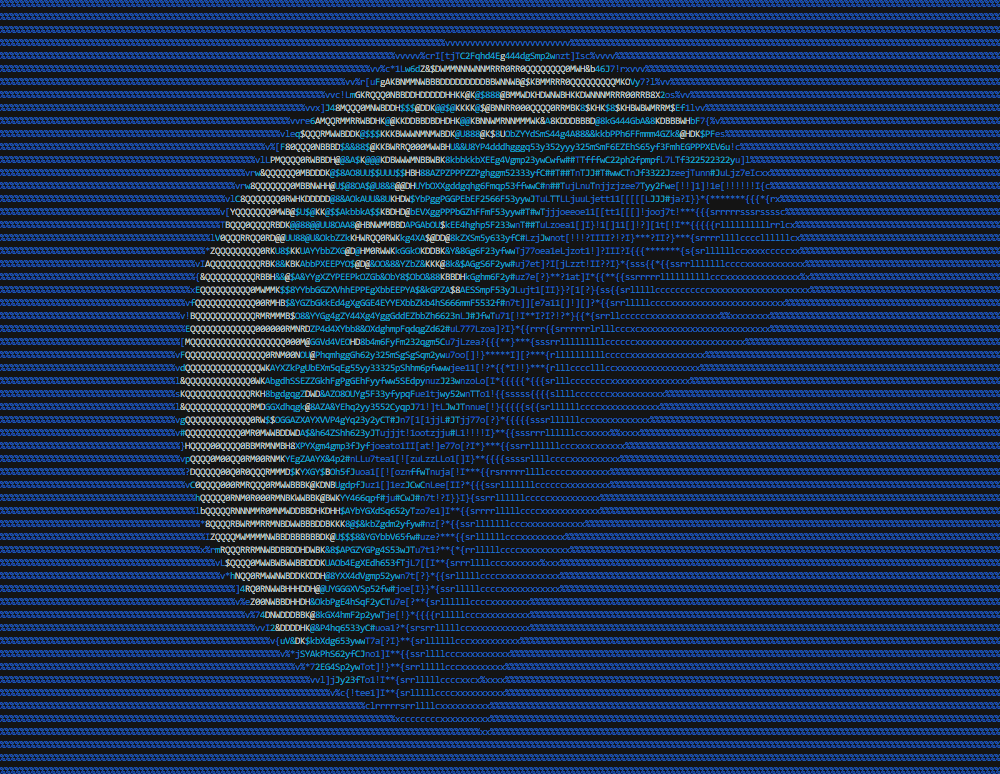
my_art = AsciiArt.from_image('moon.jpg')
my_art.to_terminal()
Result:
Colors don't work on Windows? Try this
Install Colorama and run colorama.init() before printing to the console.
pip install colorama
import colorama
from ascii_magic import AsciiArt

my_art = AsciiArt.from_image('moon.jpg')
colorama.init()
my_art.to_terminal()
The class AsciiArt
This module's entire functionality is contained within the class AsciiArt, which has a collection class methods, such as AsciiArt.from_image(), that return AsciiArt objects with pictures from different sources: files, URLs, the clipboard, etc.
These objects have multiple methods, such as my_art.to_terminal(), that generate ASCII art pieces from the picture. These methods have parameters such as columns that allow you to change the appearance of the art piece.
For convenience, the module ascii_magic also exposes a collection of functions with the same name as the class methods mentioned above, which do exactly the same.
Example:
from ascii_magic import AsciiArt, from_image

# This:
my_art = AsciiArt.from_image('lion.jpg')
my_art.to_terminal()

# Does the same as this:
my_art = from_image('lion.jpg')
my_art.to_terminal()
This class is essentially a wrapper for a Pillow image. The property AsciiArt.image exposes the underlying Pillow object so you can manipulate it directly.
Example:
from ascii_magic import AsciiArt
from PIL import ImageEnhance

my_art = AsciiArt.from_image('lion.jpg')
my_art.image = ImageEnhance.Brightness(my_art.image).enhance(0.2)
my_art.to_terminal()
quick_test()
Loads a cat picture from Cat as a Service with the default parameters and prints it to the terminal, allowing you to verify in a single line of code that everything is running O.K.
AsciiArt.quick_test() -> None
Example:
from ascii_magic import AsciiArt

AsciiArt.quick_test()
from_image()
Creates an AsciiArt object from an image file.
from_image(path: str) -> AsciiArt
Parameters:
path (str): an image file compatible with Pillow, such as a jpeg or png
Example:
from ascii_magic import AsciiArt, Back

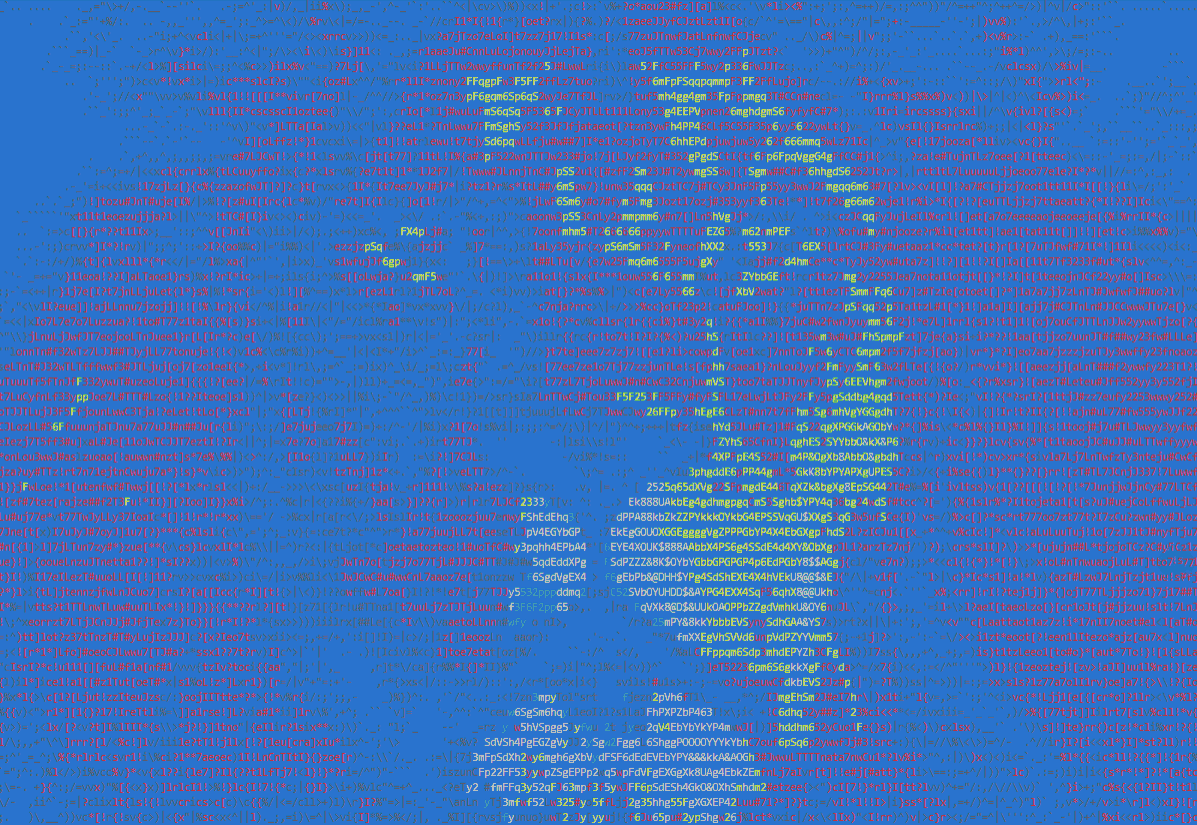
my_art = AsciiArt.from_image('lion.jpg')
my_art.to_terminal(columns=200, back=Back.BLUE)
Result:
Example:
from ascii_magic import AsciiArt

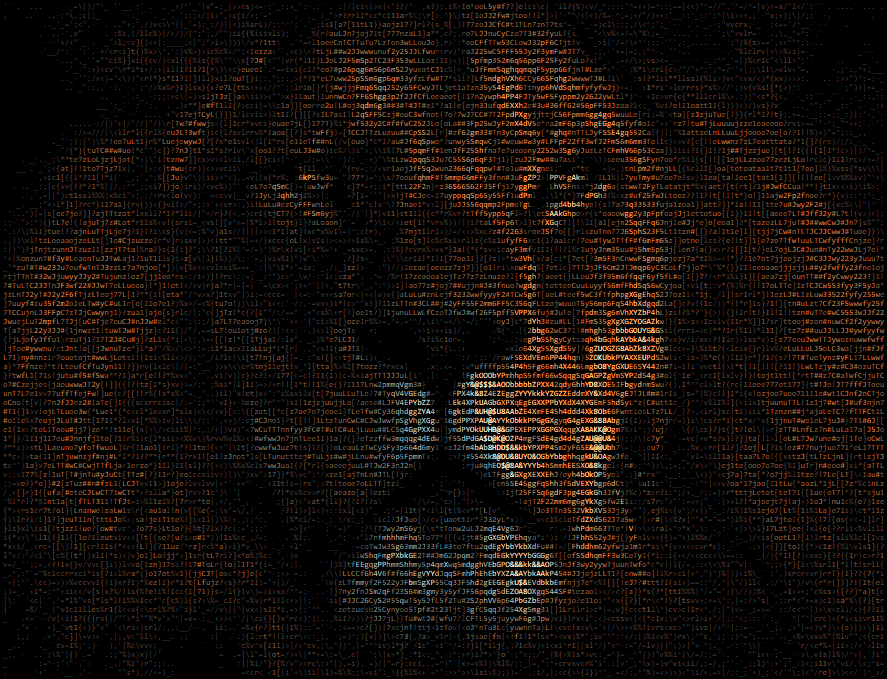
my_art = AsciiArt.from_image('lion.jpg')
my_art.to_html_file('ascii_art.html', columns=200, width_ratio=2)
Result:
Example:
from ascii_magic import AsciiArt

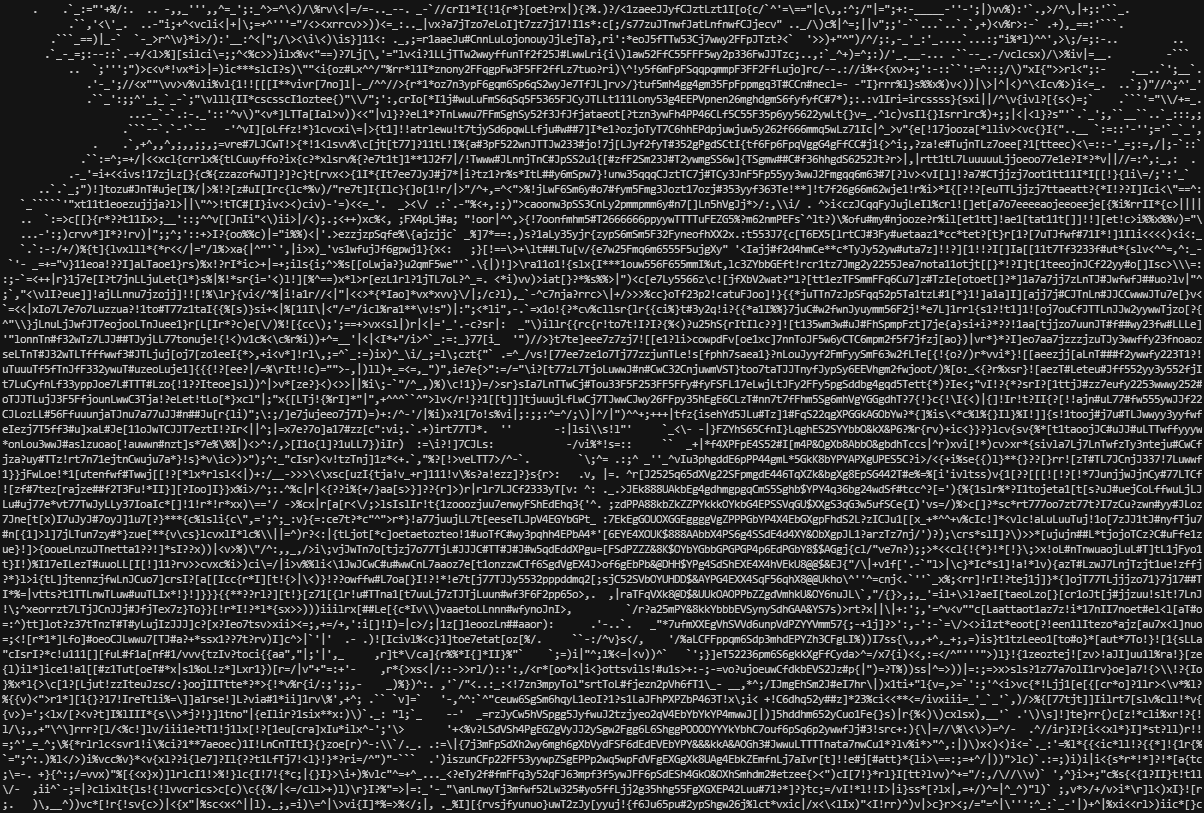
my_art = AsciiArt.from_image('lion.jpg')
my_art.to_terminal(columns=200, monochrome=True)
Result:
from_gemini()
Creates an AsciiArt object with Gemini, a generative platform that can create realistic images from a description in natural language. Requires a free API key. The API key can be set in the environment variable GEMINI_API_KEY or passed as an argument.
from_gemini(
    prompt: str,
    model: str = 'gemini-2.0-flash-preview-image-generation',
    api_key: Optional[str] = None,
) -> AsciiArt
Parameters:
prompt (str): a description of an image in natural languagemodel (str, optional): the model to use for generationapi_key (str, optional): a Gemini API key
Example:
from ascii_magic import AsciiArt

api_key = 'aFaKeGeMiNiApIkEy'
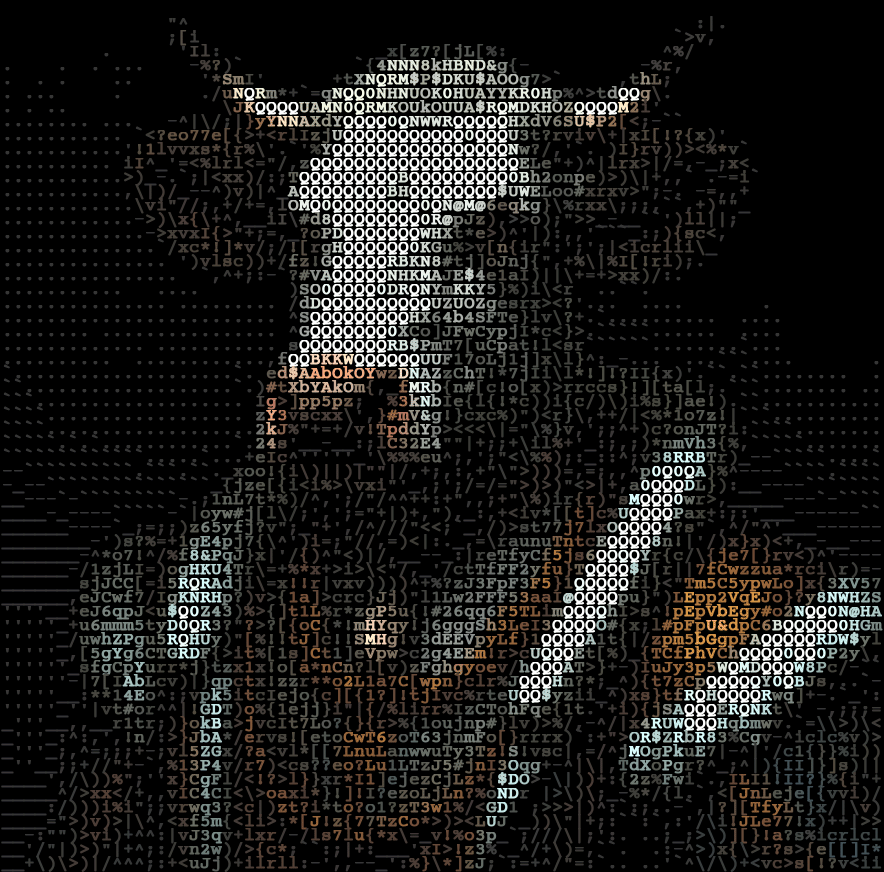
my_art = AsciiArt.from_gemini('A portrait of a cow with noble clothes', api_key=api_key)
my_art.to_image_file('example_gemini.png', columns=80, full_color=True)
Result:
from_swarmui()
Creates an AsciiArt object from SwarmUI, a text-to-image user interface. Requires the URL of a SwarmUI instance, which is usually running on localhost, port 7801. The URL can be set in the environment variable SWARMUI_SERVER or passed as an argument.
from_swarmui(
    prompt: str,
    width: int = 1280,
    height: int = 720,
    steps: int = 20,
    raw_input: dict = {},
    model: Optional[str] = 'auto',
    server: str = 'http://localhost:7801',
) -> AsciiArt
Parameters:
prompt (str): a description of an image in natural languagewidth (int, optional): the width of the imageheight (int, optional): the height of the imagesteps (int, optional): the number of steps to generate the imageraw_input (dict, optional): additional raw input to pass to the SwarmUI APImodel (str | 'auto', optional): the model to use for generation, if 'auto', the first model will be usedserver (str, optional): the URL of a SwarmUI instance
Example:
from ascii_magic import AsciiArt

my_art = AsciiArt.from_swarmui(
    'A portrait of a cow with noble clothes',
    width=640,
    height=480,
    steps=50,
    raw_input={
        'seed': 42,
        'cfgscale': 8.0,
        'negative_prompt': 'low quality, pixelated, blurry',
    },
    server='http://localhost:12345'
)
my_art.to_image_file('example_swarmui.png', full_color=True)
from_url()
Creates an AsciiArt object from an image URL. Raises an urllib.error.URLError if something goes wrong while requesting the image, but you can also catch it as an OSError if you don't want to import urllib into your project.
from_url(url: str) -> AsciiArt
Parameters:
url (str): an URL which will be loaded via urllib (supports redirects)
Example:
from ascii_magic import AsciiArt

try:
    my_art = AsciiArt.from_url('https://cataas.com/cat')
except OSError as e:
    print(f'Could not load the image, server said: {e.code} {e.msg}')
my_art.to_terminal()
from_clipboard()
Creates an AsciiArt object from the contents of the clipboard. Raises an OSError if the clipboard doesn't contain an image. Requires PyGObject under Linux.
from_clipboard() -> AsciiArt
Example:
from ascii_magic import AsciiArt

try:
    my_art = AsciiArt.from_clipboard()
except OSError:
    print('The clipboard does not contain an image')
my_art.to_terminal()
from_pillow_image()
Creates an AsciiArt object from an image object created with Pillow. This allows you to handle the image loading yourself.
from_pillow_image(img: PIL.Image) -> AsciiArt
Parameters:
img (obj): an image object created with Pillow
Example:
from ascii_magic import AsciiArt
from PIL import Image

img = Image.open('lion.jpg')
my_art = AsciiArt.from_pillow_image(img)
my_art.to_terminal()
print_palette()
Prints the entire 8-color palette to the console.
Example:
from ascii_magic import AsciiArt

AsciiArt.print_palette()
The AsciiArt object
An AsciiArt object created as explained above has a collection of methods, such as to_ascii(), that allows you to create and display ASCII art pieces. All of them return a string, and some have additional functionality, as described below.
to_ascii()
Returns a string containing ASCII art and, by default, control characters that allows most terminals (also known as shells) to display color.
The module ascii_magic exposes two enums to handle color: Front and Back which allow you to select terminal-compatible colors.
AsciiArt.to_ascii(
    columns: int = 120,
    width_ratio: float = 2.2,
    char: Optional[str] = None,
    enhance_image: bool = False,
    monochrome: bool = False,
    fr